Prerequisites:
- Make sure you have the Configurator app installed.
- Apple Configurator Credentials
- Make sure your work phone is connected to WiFi.
To Deploy new iPhones to RSP Intune Configuration:
- Click on the (i) icon, record the Serial Number (SN) and IMEI on the device spreadsheet.
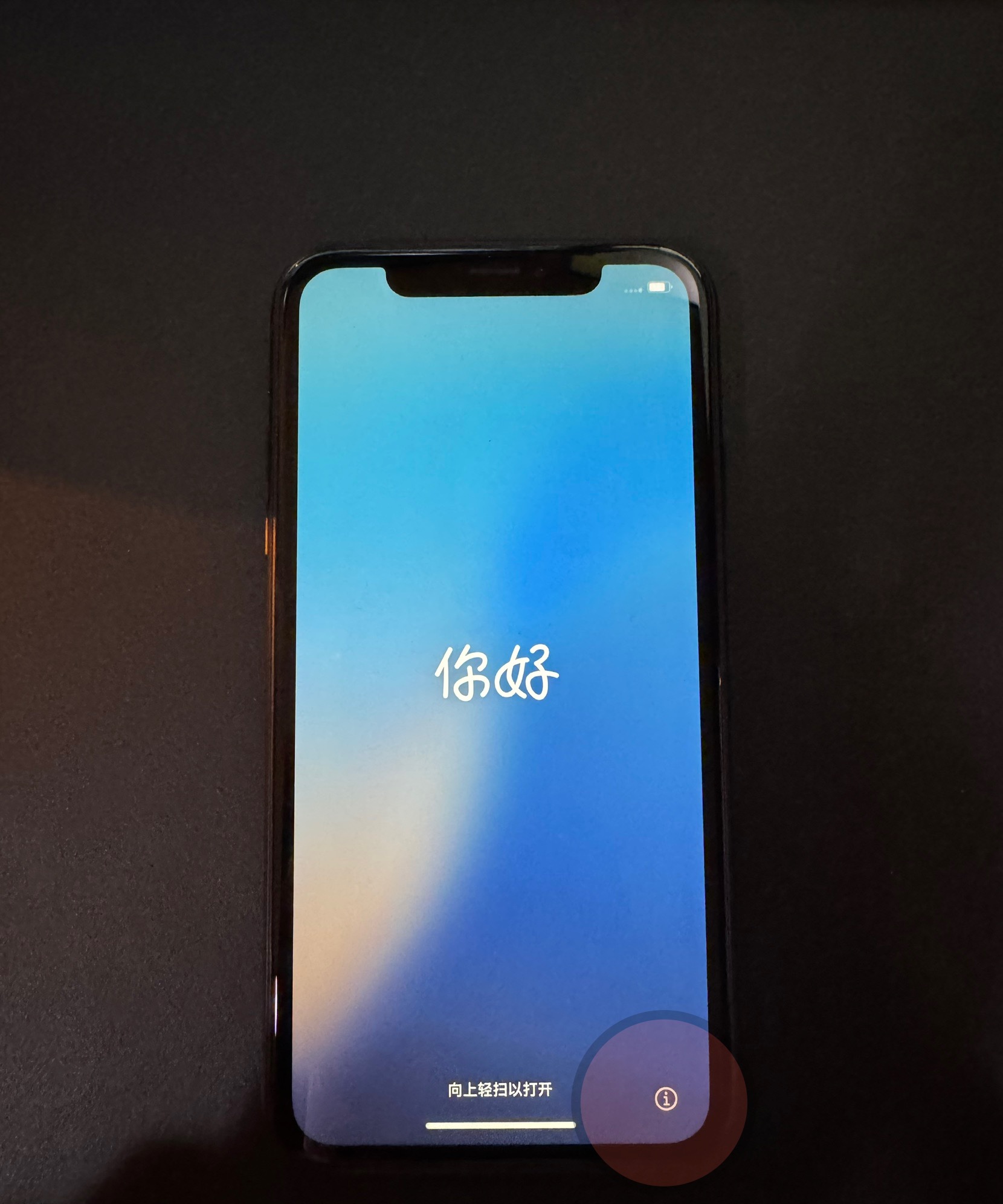
- Language: English
Region: United States
Appearance: Continue
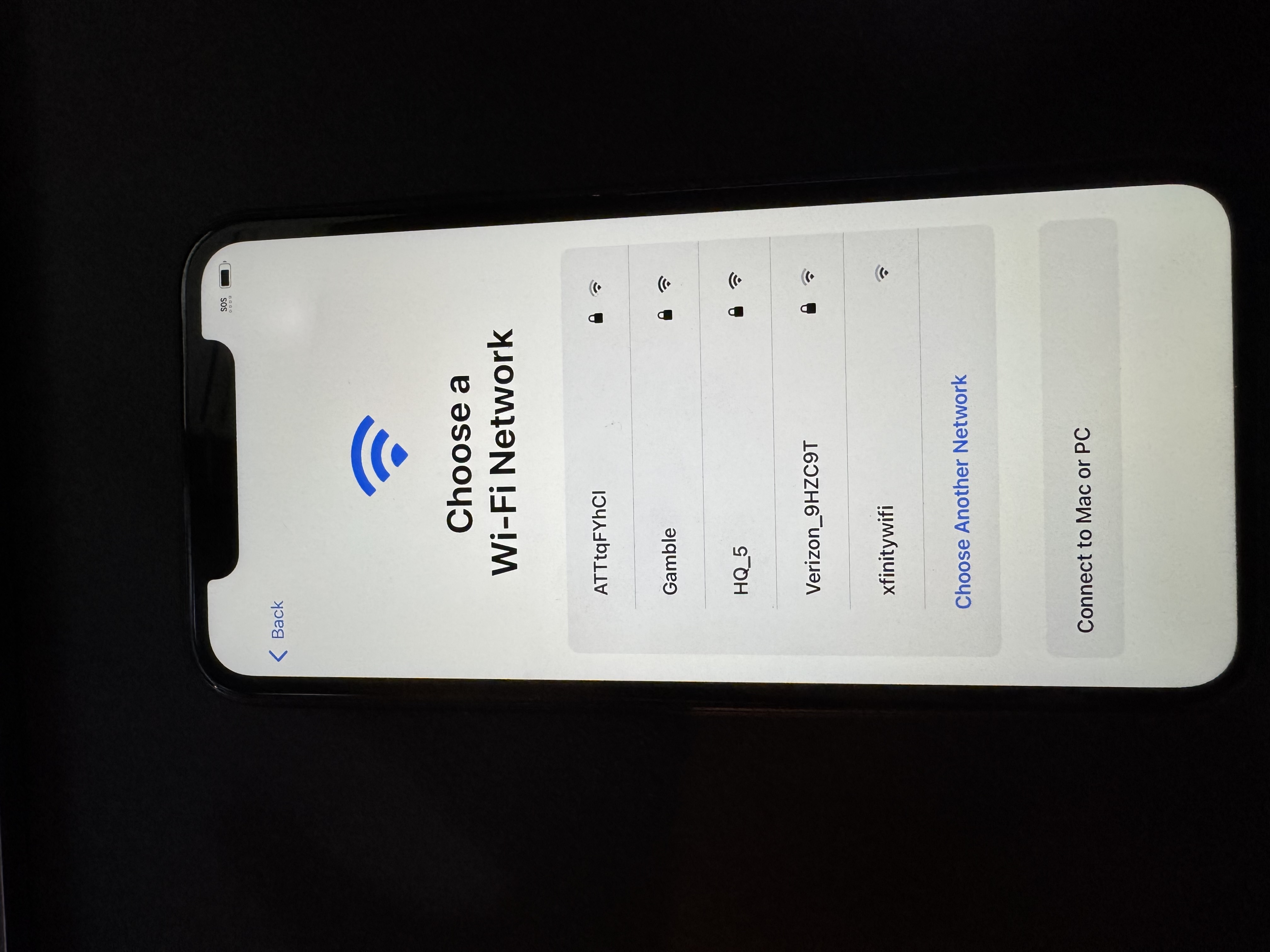
Quickly Setup up Without Another Device - You will see the list of WiFis:
- On your Work Phone open up the Configurator App
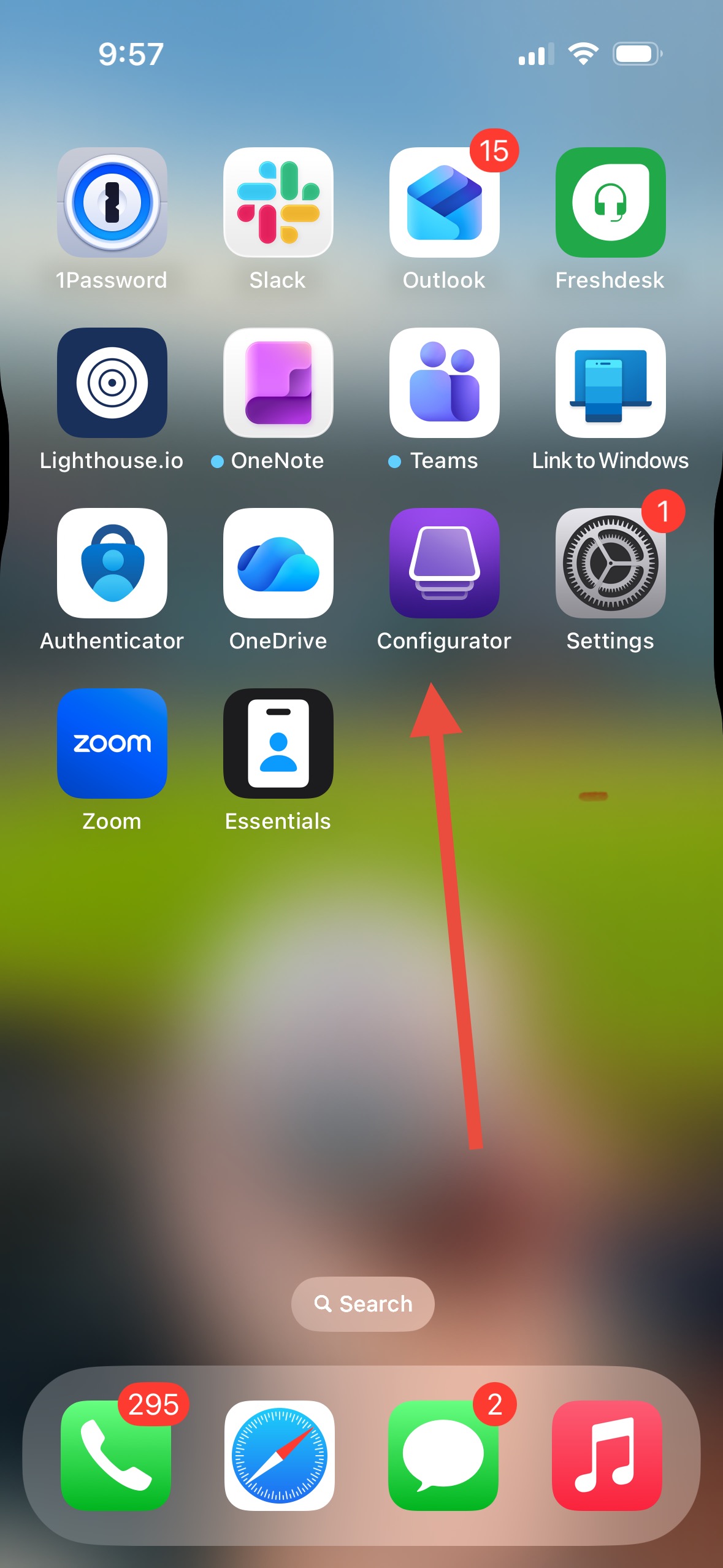
- Sign in if not already signed in.
- Click on the Settings icon on the lower left side.
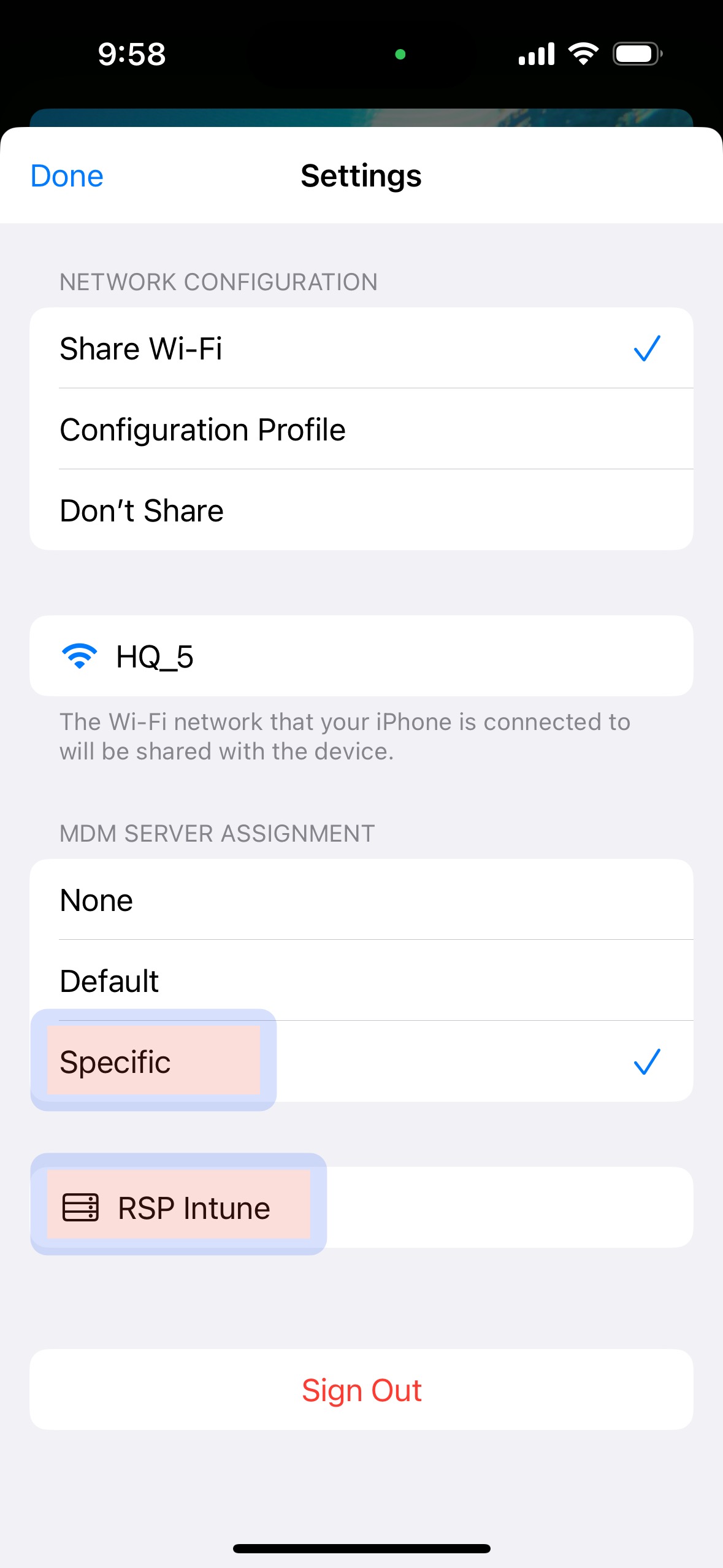
- You will see the following screen. Confirm that you have MDM Server Assignment as Specific -> Select RSP Intune
- With your work phone in the Configurator App scan the circle cloud that appears on the site phone.
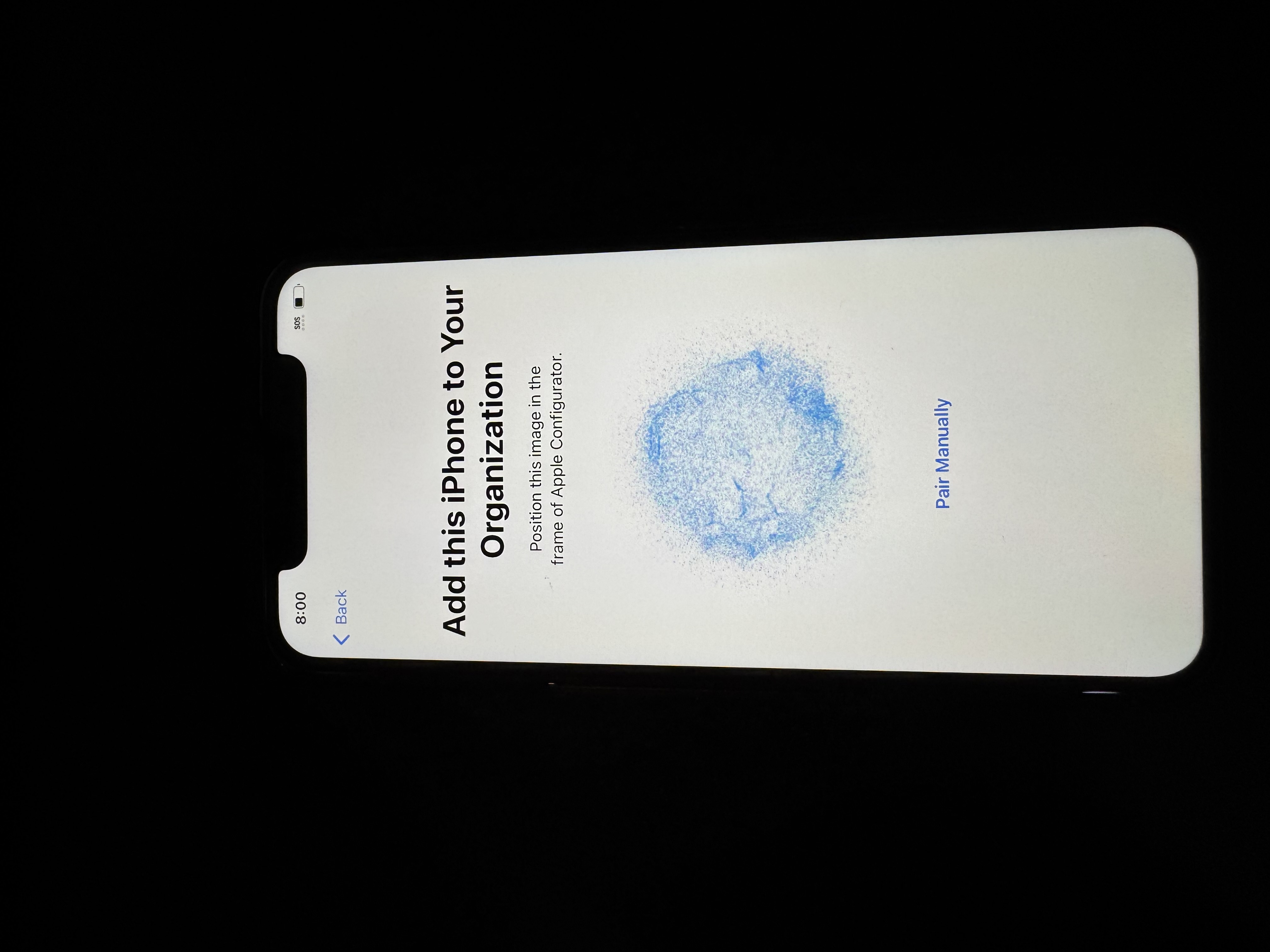
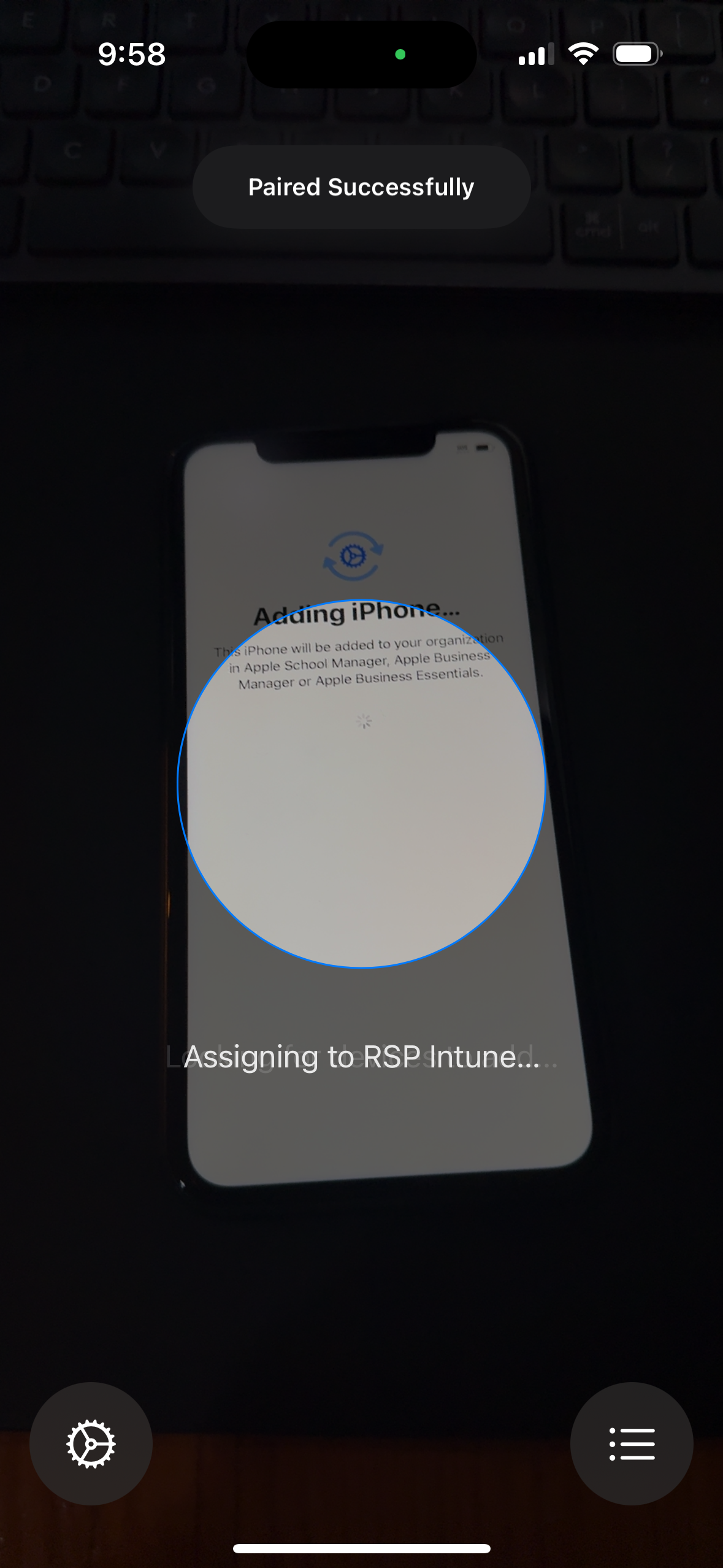
- The phone will now be added to the correct MDM:
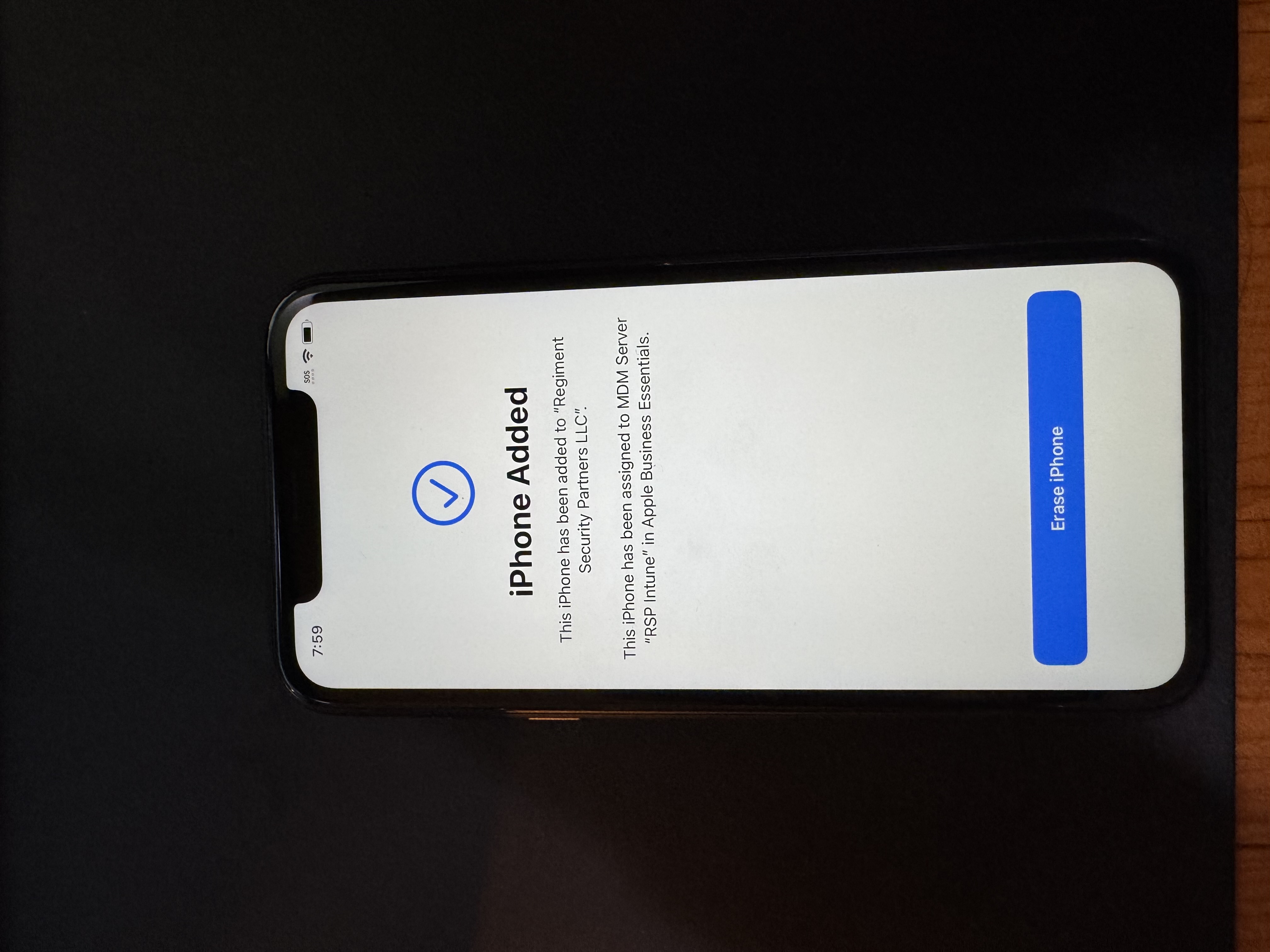
- It will confirm that it has been added to the MDM. Now tap Erase iPhone.
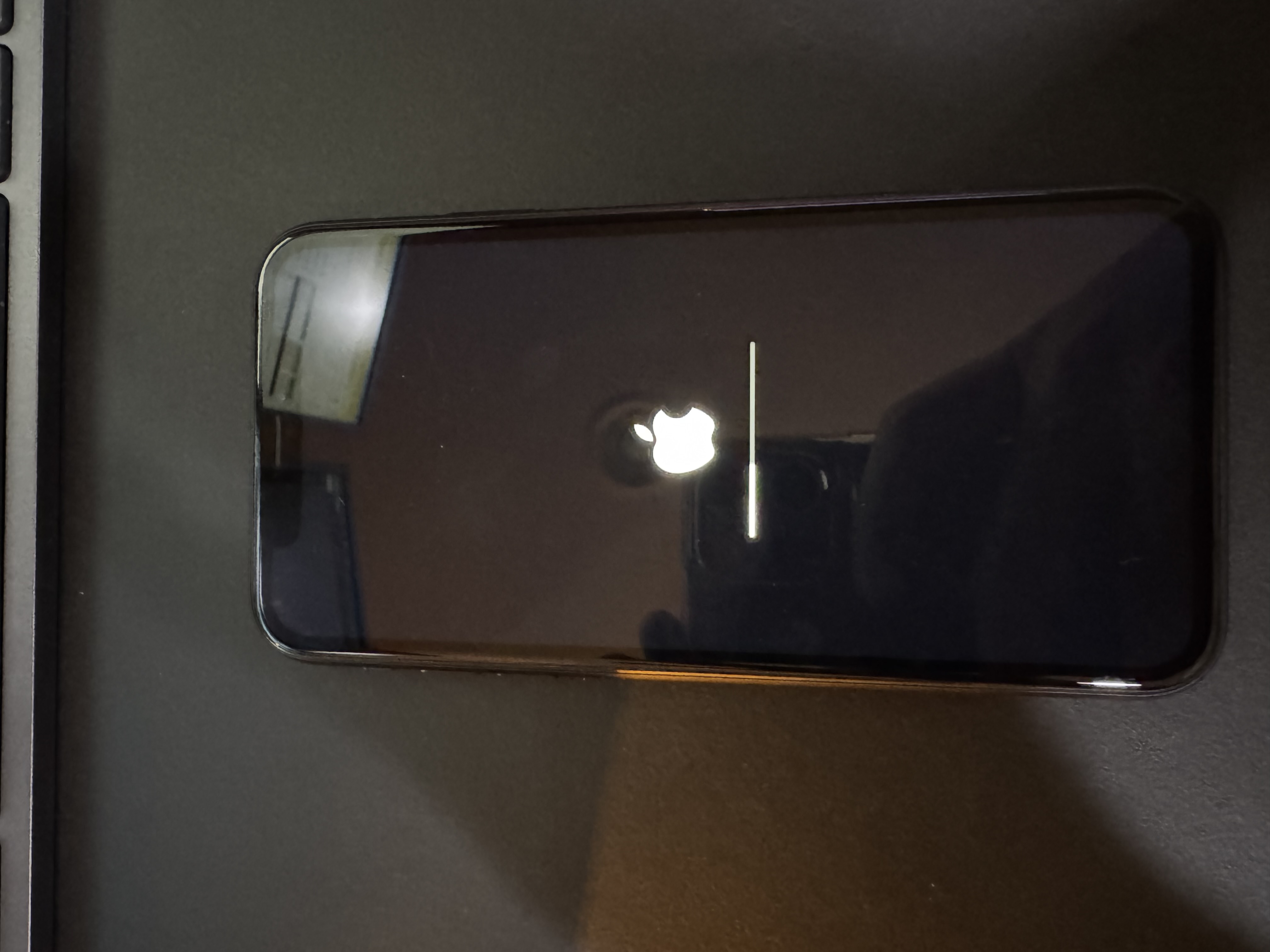
- The phone will reset:
- This time, get to the WiFi selection screen again. Enter the office WiFi. You should see this message right after:
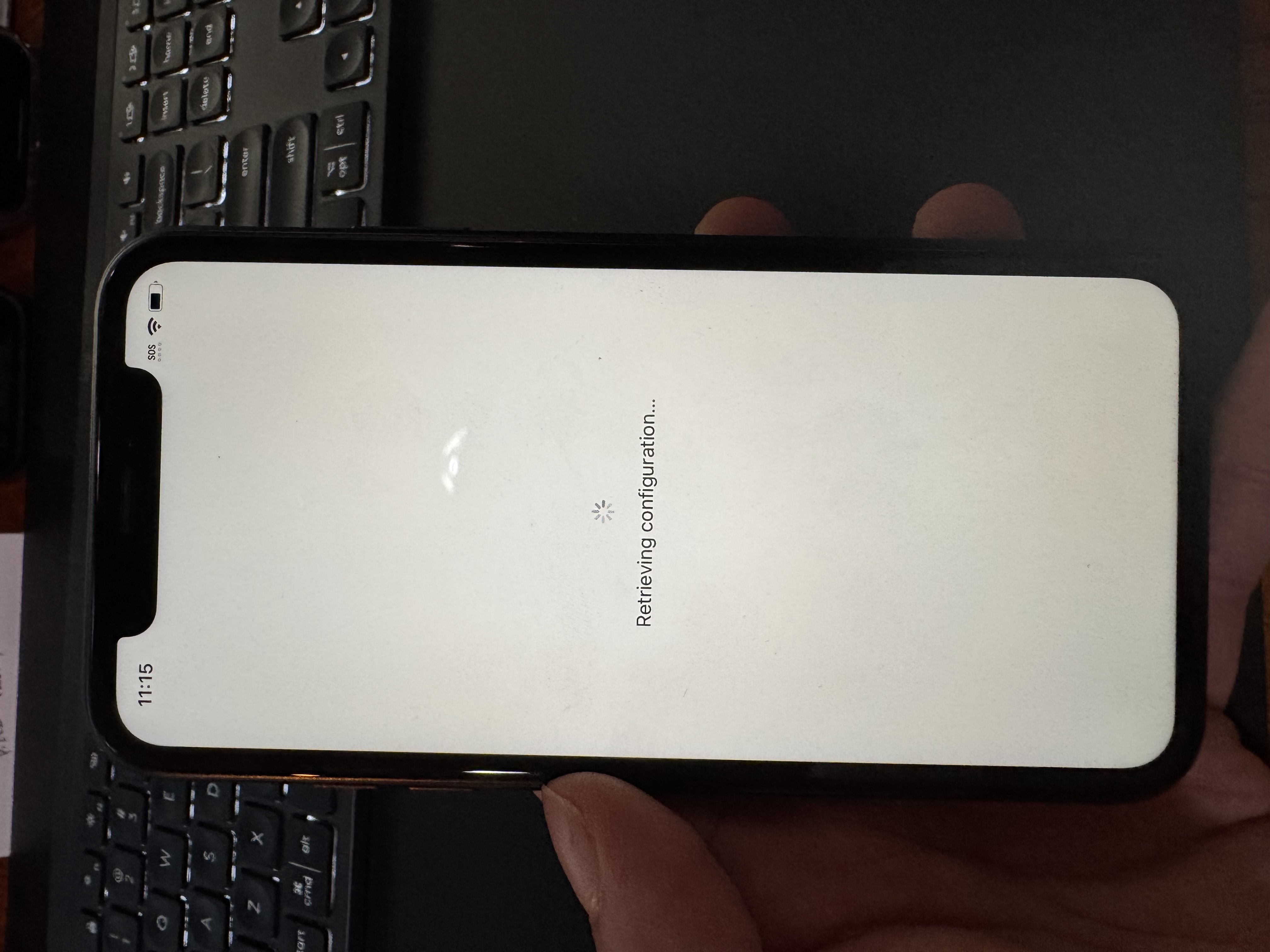
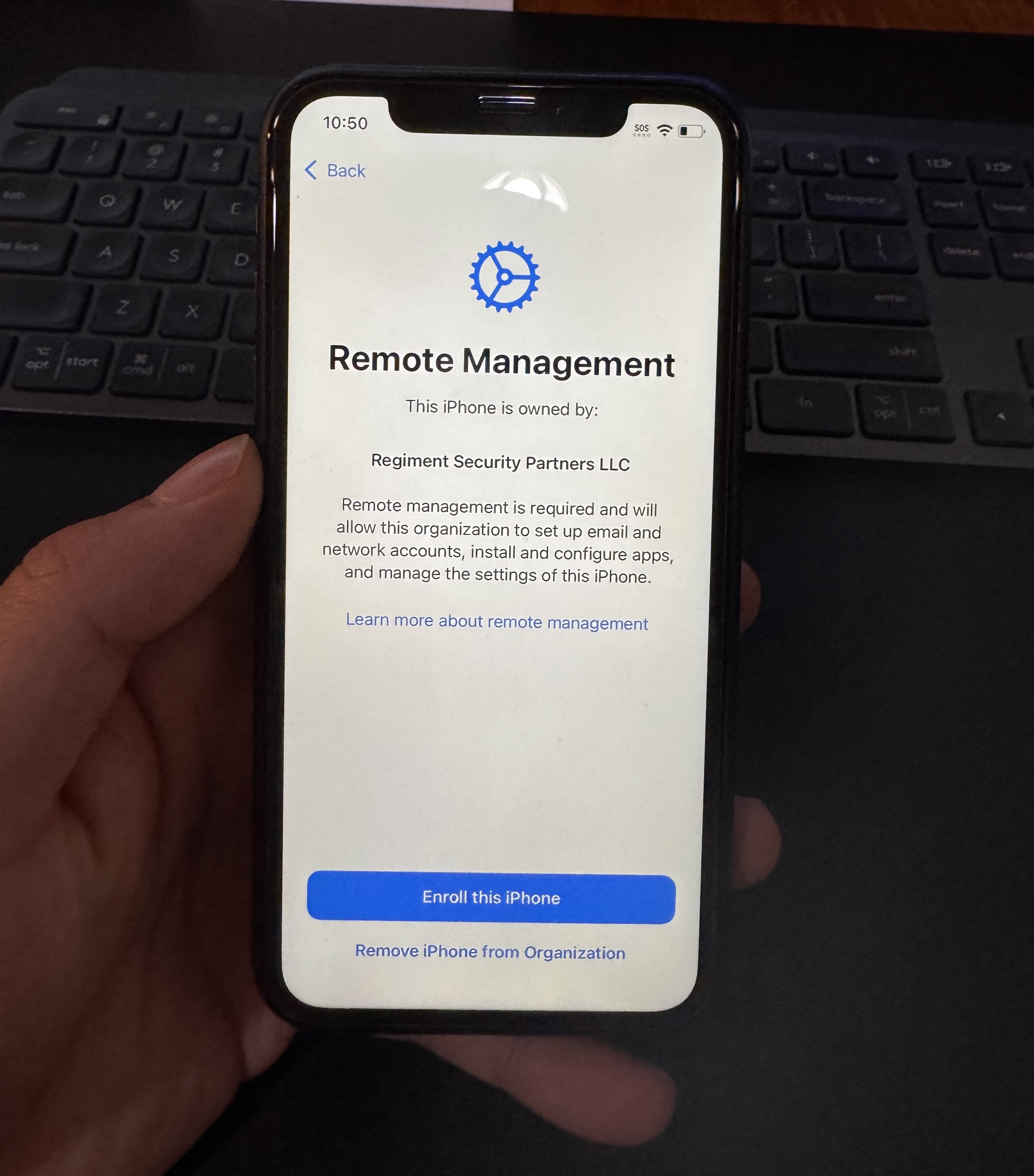
- You should then see this screen. IF YOU DO NOT SEE THIS GO TO B. START OVER STEPS BELOW:
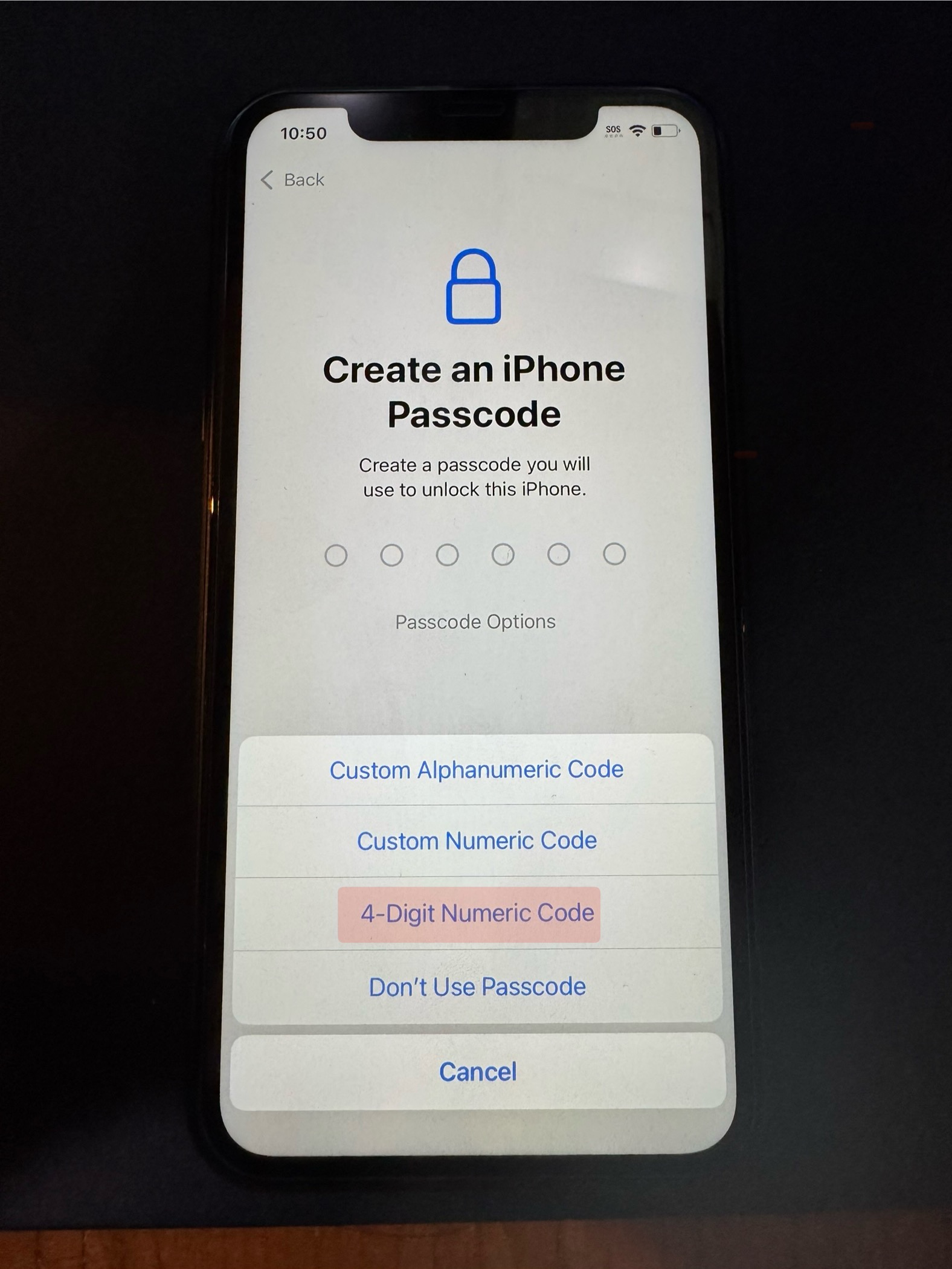
- It's going to ask you to create a PIN, you can keep using 1425, or change it. MAKE SURE YOU ADD THE PIN IN THE SPREADSHEET!
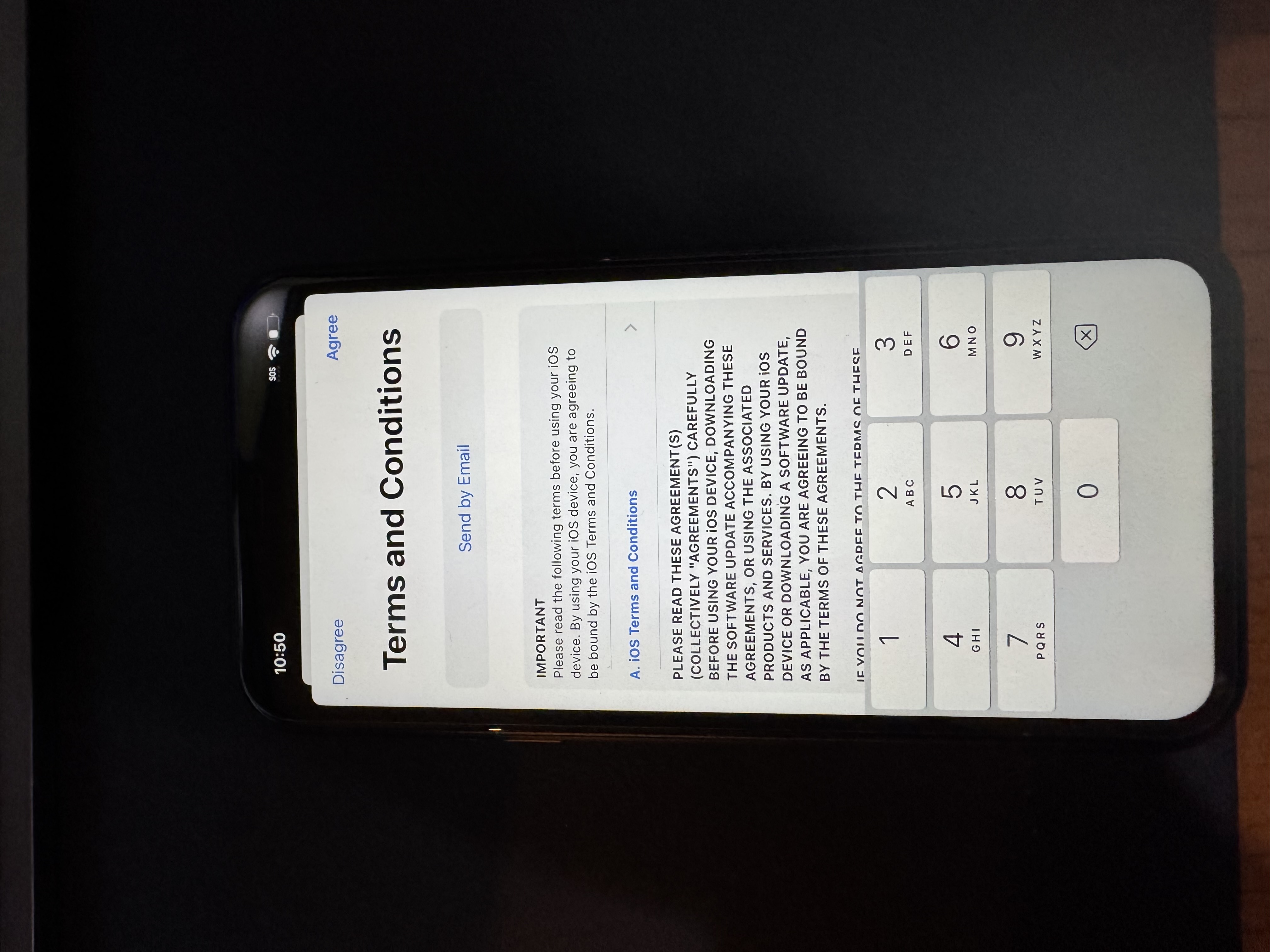
- Accept the Terms and Conditions:
- Click on the following:
Update your iPhone Automatically: Continue
iMessage & Facetime: Continue
Location Services: Turn On Location Services
Set up Cellular: Set up Later in Settings
Screen time: Continue
iPhone Analytics: Share with Apple - The Comp Portal app should automatically install:
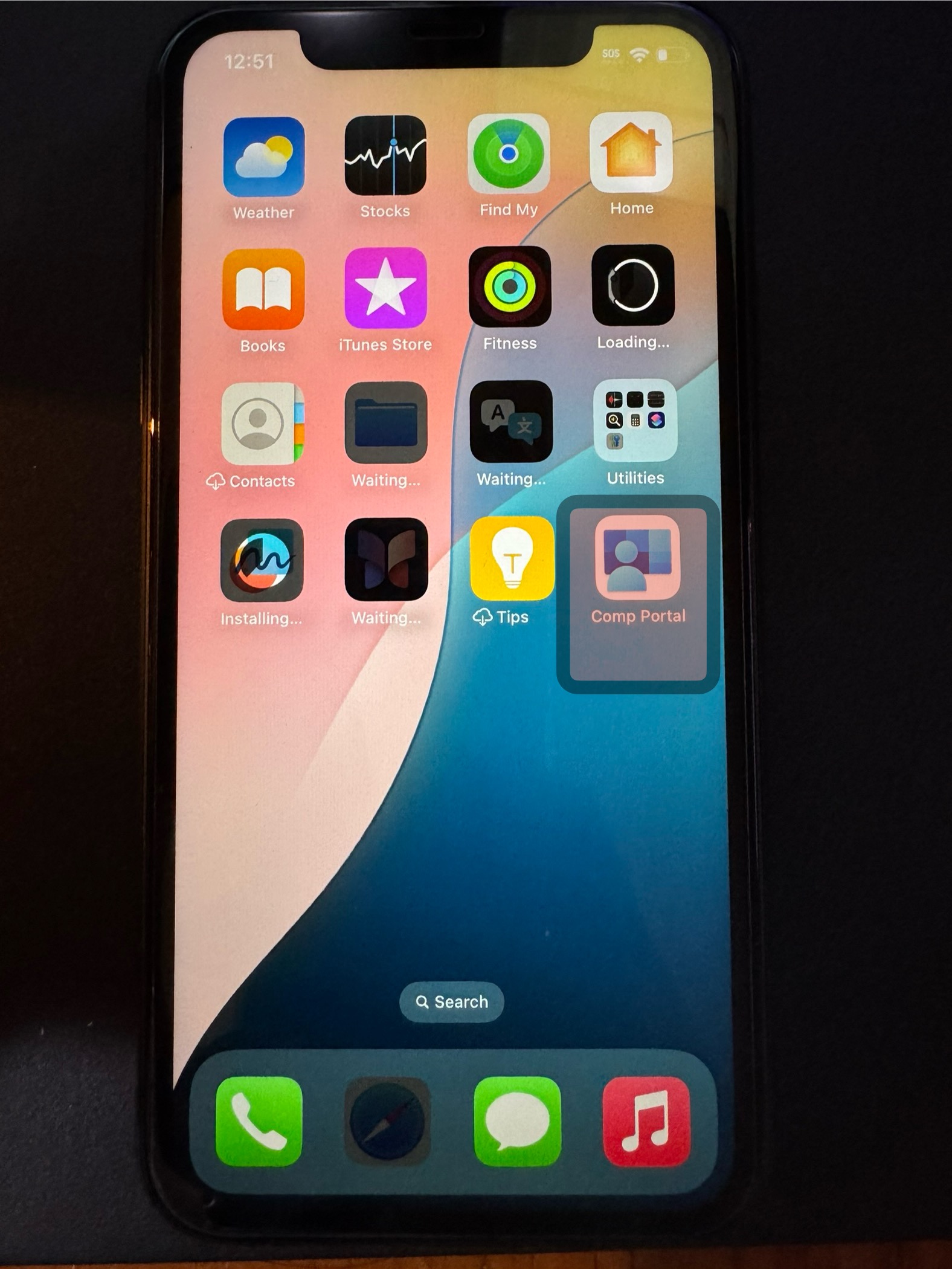
- Sign in with the device credentials. The Credentials will be in the spreadsheet for the corresponding device row. The link should be a 1PASSWORD link.
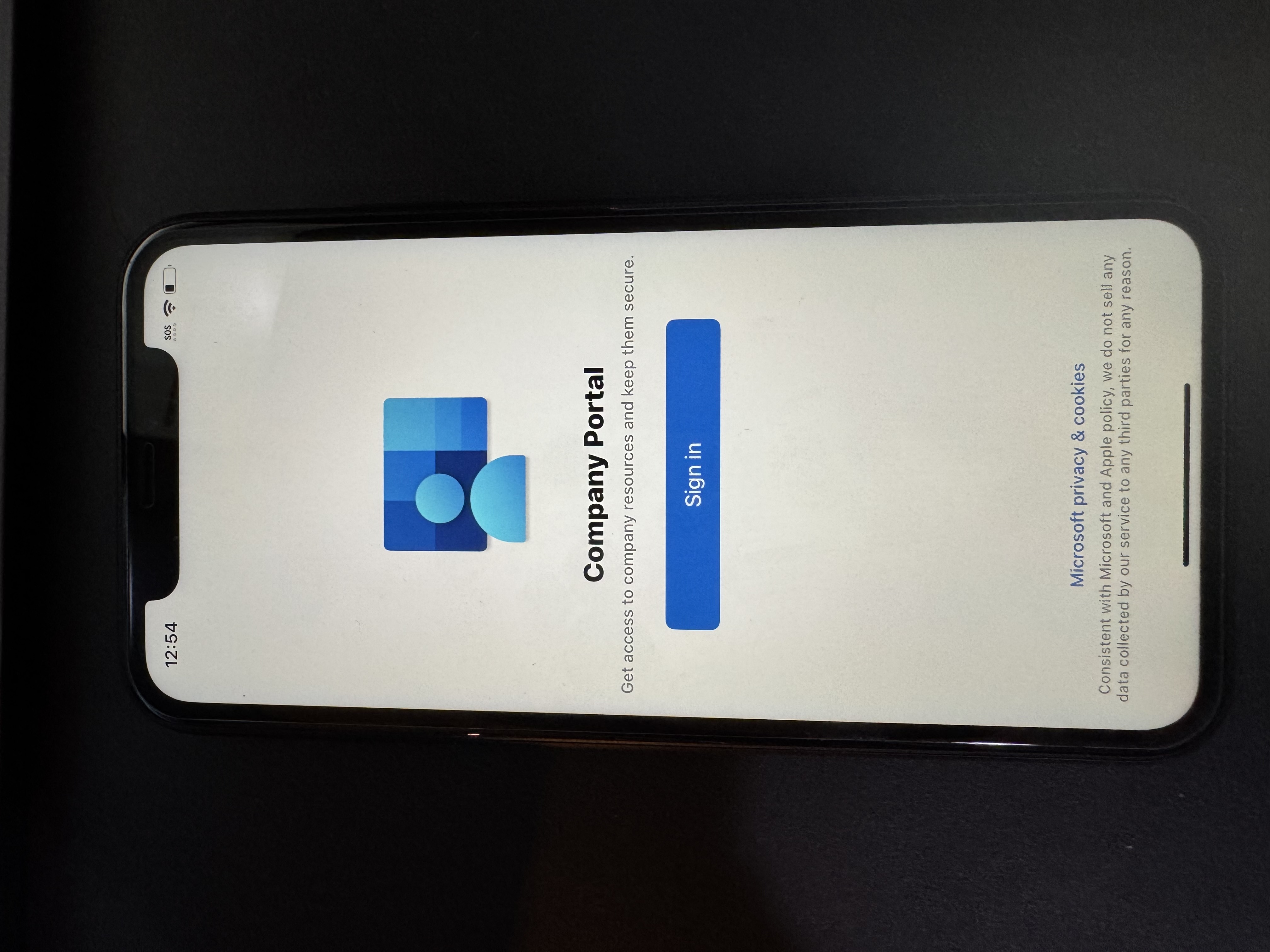
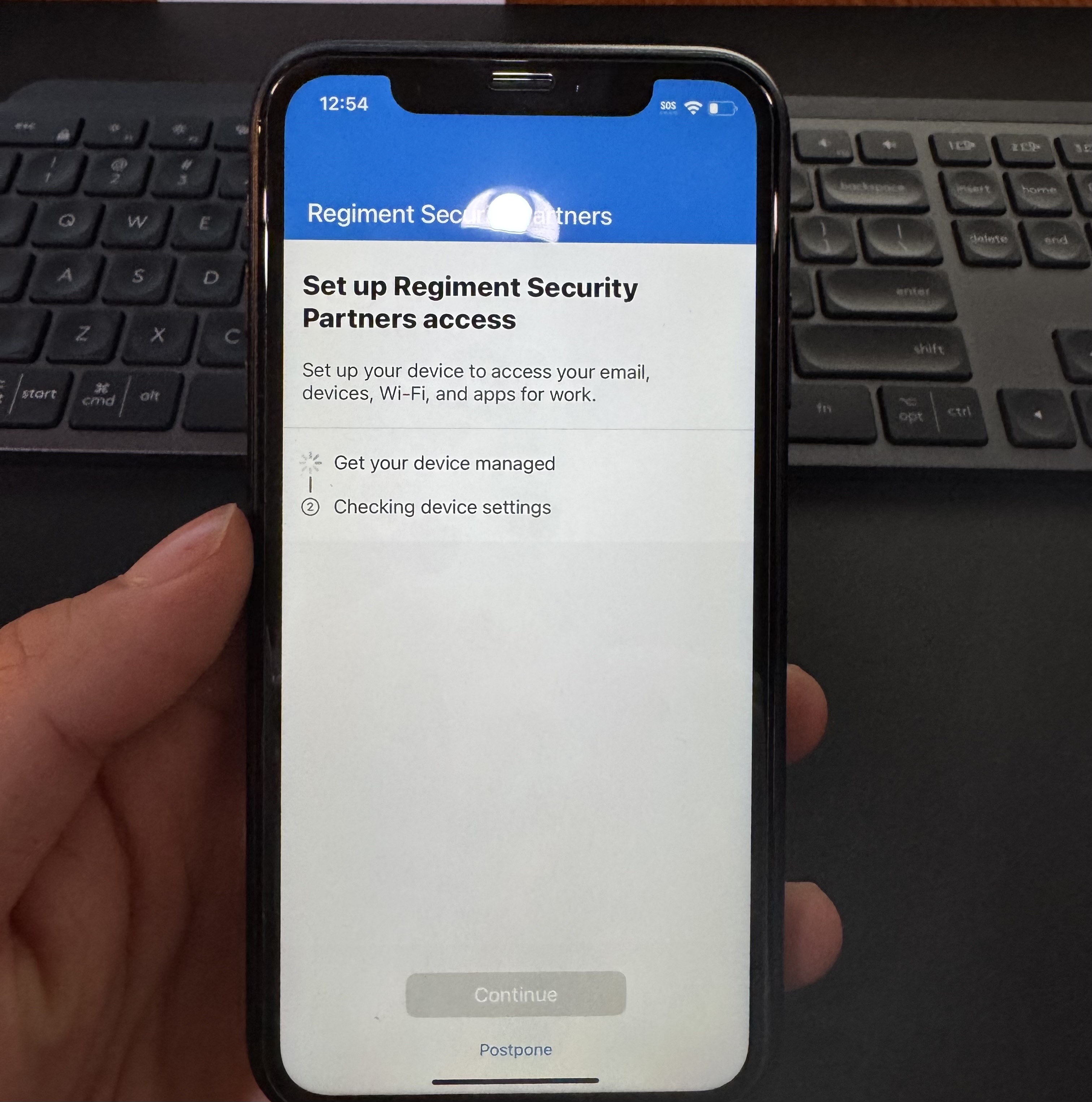
- Click Continue twice:
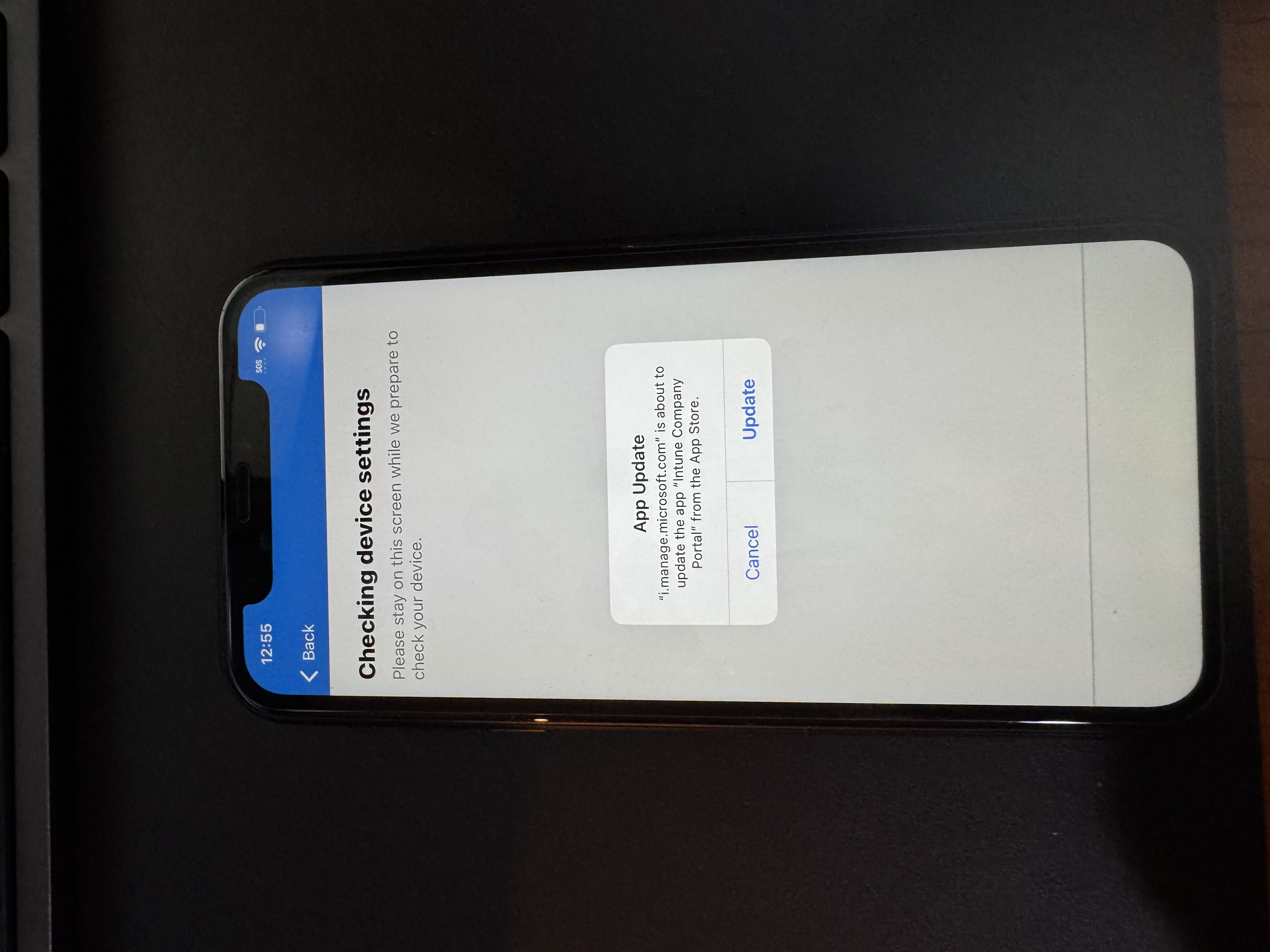
- If this pops up just tap UPDATE
- This is how it should look:
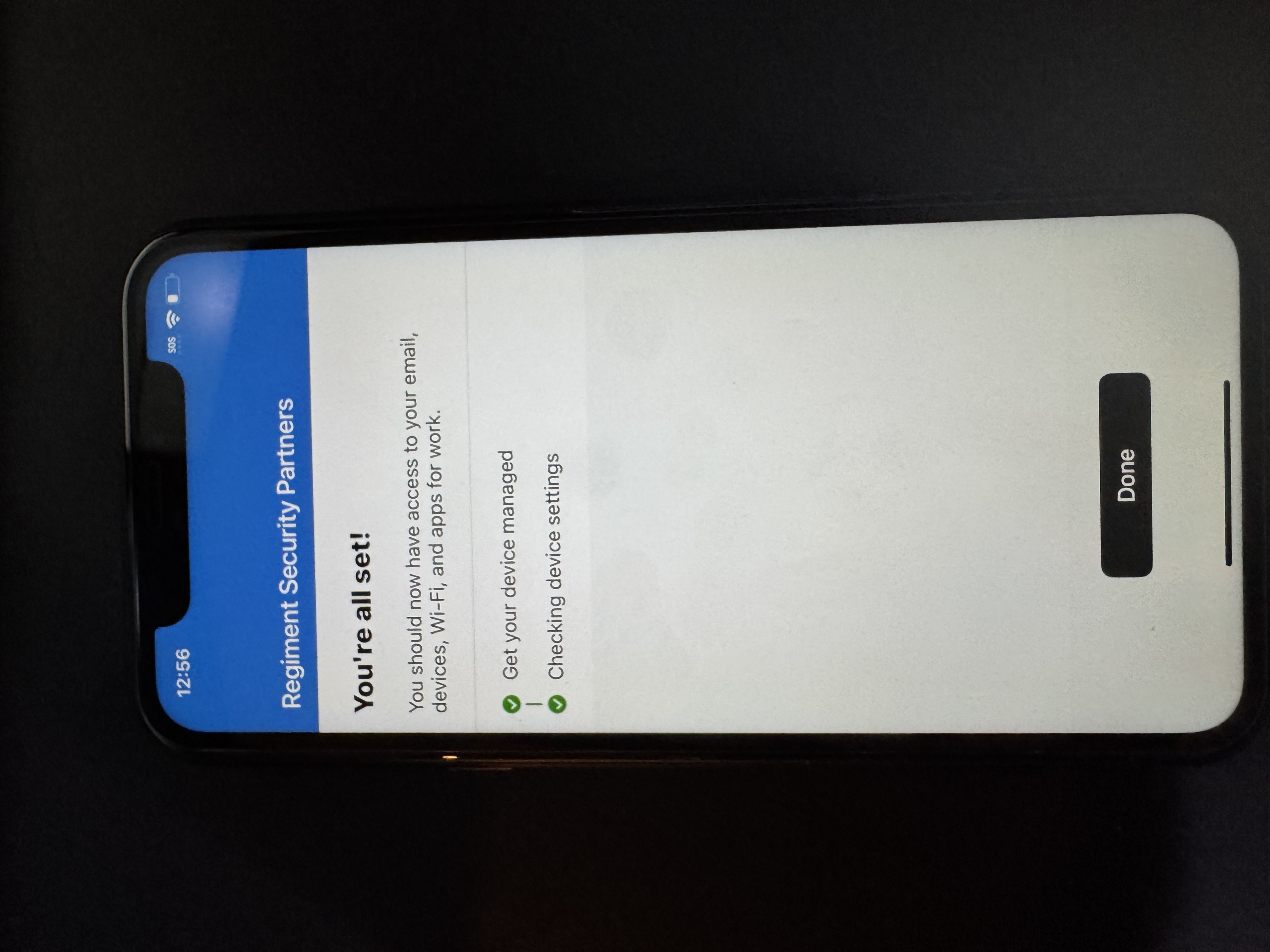
- This will push the configuration to the phone. It should also remove the non-work apps from the device.
- This is how the phone should look before we deploy it to the Site:
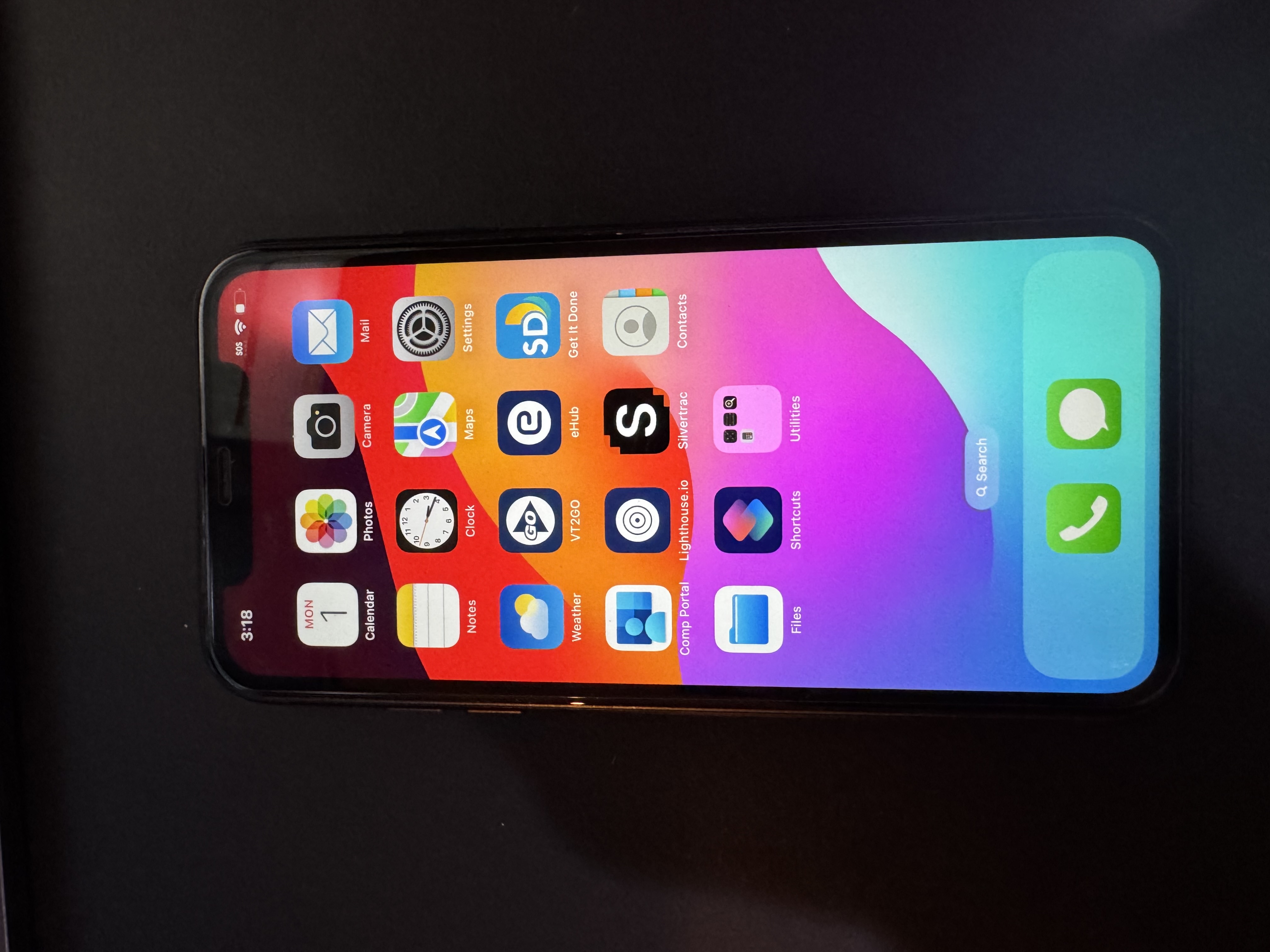
If it doesn't add the device, turn off the iphone and follow steps below to try again.
B. Start over:
Continue with the screens that is displayed:
Age Range: Adult
Face ID: Set Up Later
Passcode: 111111
Transfer your Apps & Data: Don't Transfer Anything
Apple Account: Forgot Password or don't have an account? -> Set Up Later in Settings -> Don't Use
Terms and Conditions: Agree
Update Your Phone Automatically: Continue
iMessage & Facetime: Continue
Location Services: Turn On
Set up Cellular: Set up Later in Settings
Screen Time: Continue
iPhone Analytics: Don't Share
Light or Dark Display: Continue
Siri: Set up Later in Settings
RESET THE DEVICE:
Settings -> General -> Transfer or Reset -> Erase All Content and Settings -> Erase this iPhone? -> Continue -> Erase iPhone -> Enter PIN.
Start above in STEP 1.
Was this article helpful?
That’s Great!
Thank you for your feedback
Sorry! We couldn't be helpful
Thank you for your feedback
Feedback sent
We appreciate your effort and will try to fix the article